Support / SolidWorks add-in
Checking work in and out
The daily rhythm of working with the vault from CAD.
SolidWorks add-in
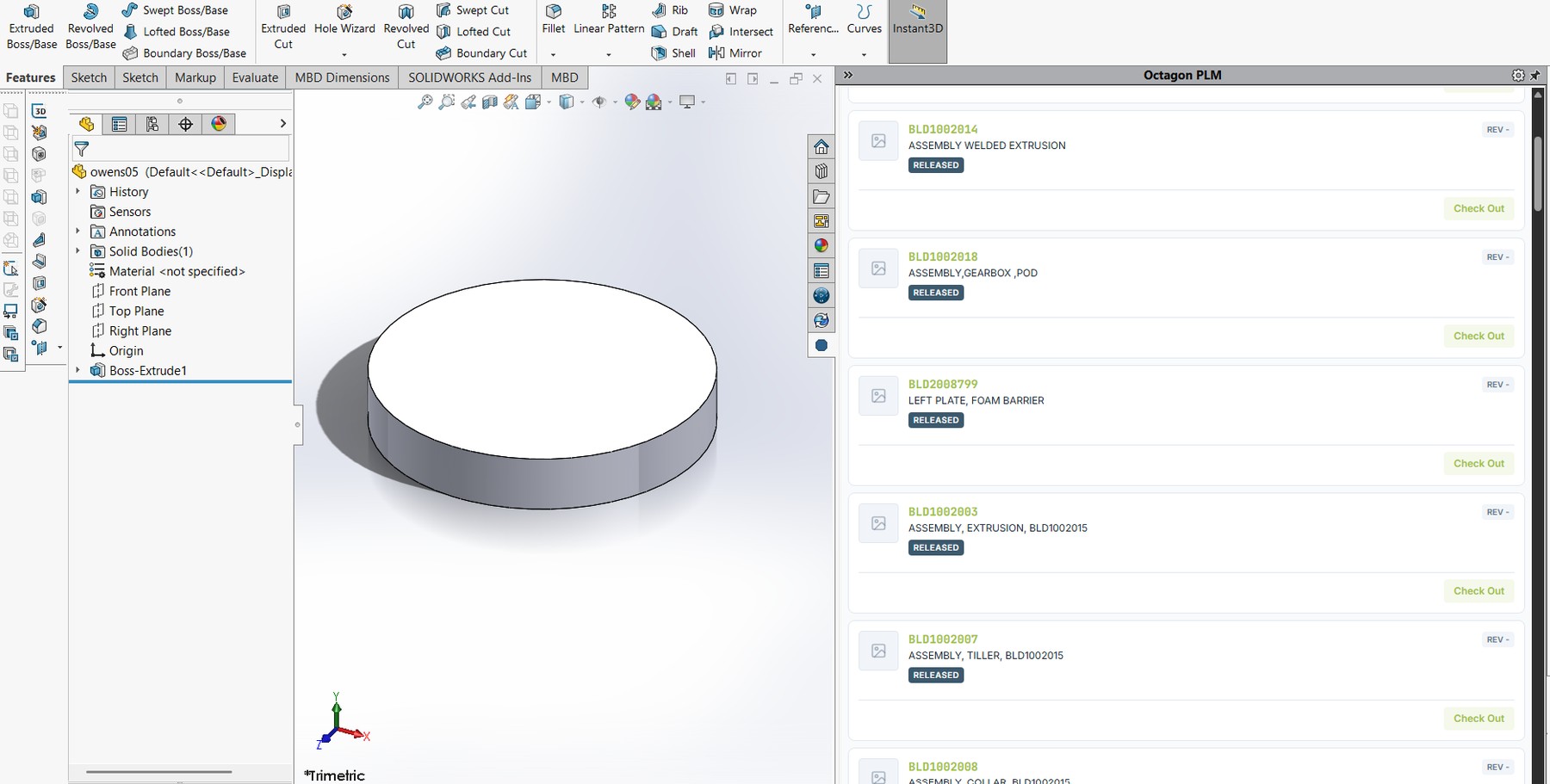
Check-out takes a lock so nobody else can edit while you work. Check-in returns it with your changes.
Checking out
- Find the part in the panel's vault search, or open a file already linked to the vault.
- Choose Check Out. The lock is now yours and the local file becomes editable.
- For an assembly, choose Cascade checkout to take its components at the same time.
Checking in
- Save in SolidWorks first — the add-in uploads what's on disk.
- Choose Check In.
- Write a comment describing what you changed.
- Decide whether to release the lock. Keep it if you're continuing tomorrow.
What happens on check-in
- The native file uploads and becomes the current version
- Neutral formats and a PDF of the drawing are generated where configured
- Mass properties and custom properties sync to the part record
- Assembly structure updates the BOM
- A thumbnail is regenerated
Unchanged files are skipped
If a file hasn't actually changed, it isn't re-uploaded. Checking in a large assembly where you only touched one part is quick for this reason.
Discarding
Changed your mind? Undo check-out releases the lock and discards your local changes. It cannot be undone — make sure that's what you want.
Still stuck?
Email [email protected] and a person will pick it up. Include the part number and what you were doing — it saves a round trip.