Finding your way around
A map of the sidebar and what each group of modules is for.
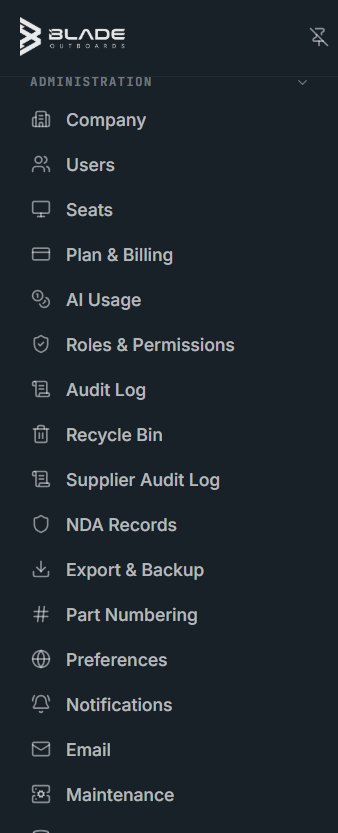
Everything is reached from the sidebar on the left. It's grouped by what you're trying to do rather than alphabetically, and groups collapse so you can hide the ones you never use.
The groups
| Group | What's in it |
|---|---|
| Engineering | Assemblies & BOM, Assembly Instructions, Parts, 3D Visualization, Projects, Timeclock, and the import tools |
| Changes | ECRs, ECOs, ECNs and your Approvals queue |
| Vault | The document library — files that aren't attached to a single part |
| Commercial | Tenders & RFQs, Spare Parts, HS Code Manager, Product SKUs, Approved Vendors |
| Production | Factory Tools, Traceability, Testing Requirements, Factory Supplemental, Labour & Man-Hours |
| Administration | Company settings, users, permissions, audit, backups — visible to administrators only |
| Tools | Bulk helpers: weight calculator, materials library, part-name cleanup, auto-categorise |
| System | Your profile, plug-ins, appearance and system status |
The sidebar only shows what your seat and role allow. If a colleague can see something you can't, that's a permissions difference — ask your administrator. See Seats and what each one can do.
Getting anywhere fast
The search box at the top of every screen searches parts, files and documents at once. You can paste a part number straight into it. Results are limited to what you have permission to see, so two people searching the same term may see different results — that's expected.
Email [email protected] and a person will pick it up. Include the part number and what you were doing — it saves a round trip.