Support / Parts & records
Files on a part
How files attach to a part and why they revise together.
Parts & records
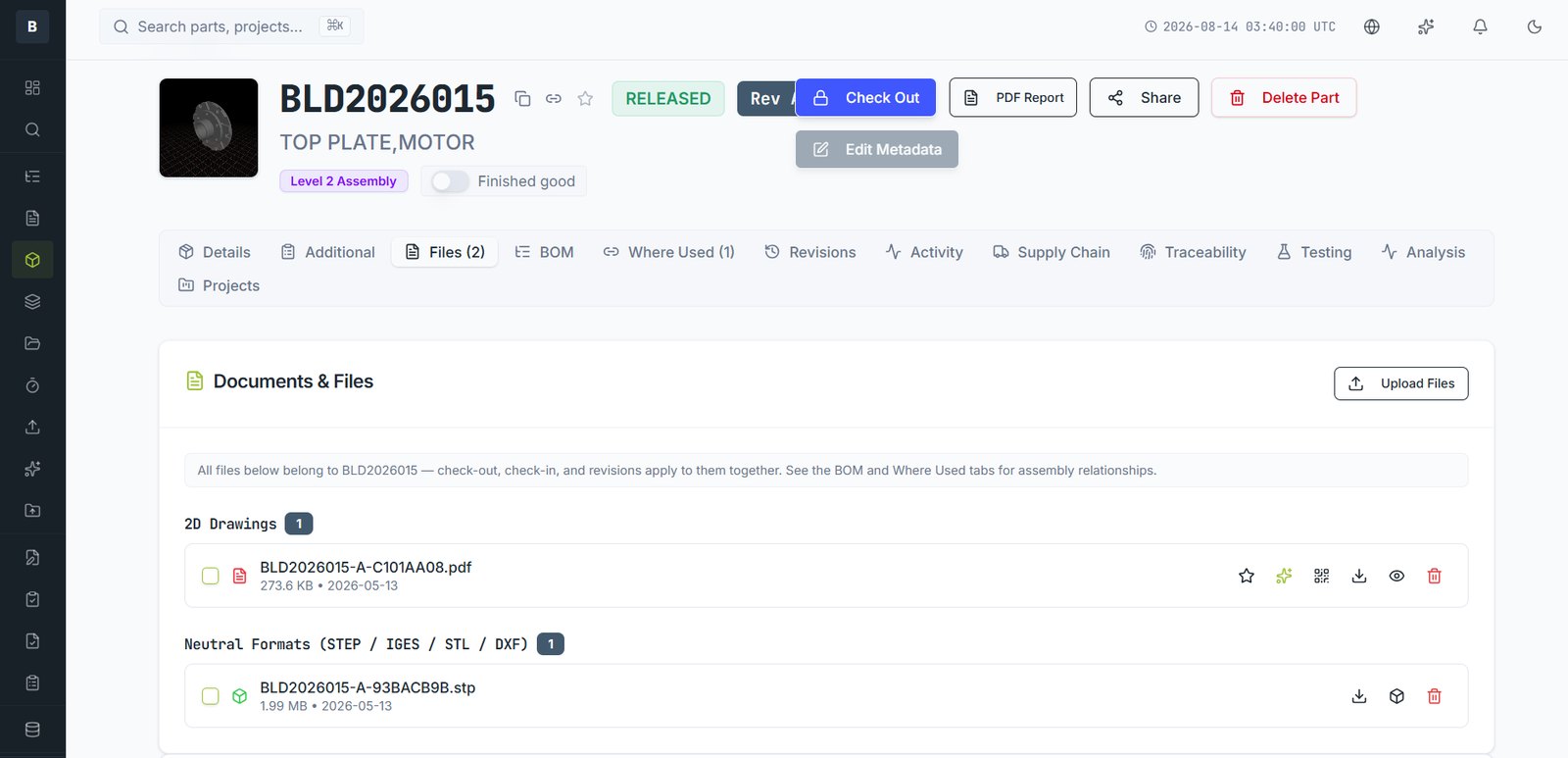
Files belong to the part, not to a folder. Everything attached to a part is checked out, checked in and revised together — which is what stops a STEP file quietly falling a revision behind its drawing.
What's normally attached
- Native CAD — the source model or assembly
- 2D drawings — usually PDF
- Neutral formats — STEP, IGES, STL, DXF for suppliers and machines
- Supporting documents — datasheets, certificates, test reports, firmware
Adding a file
- Open the part's Files tab.
- Choose Upload Files and select them, or drag them onto the panel.
- They're categorised automatically by type. A thumbnail is generated for models and drawings.
The primary file
One file can be marked primary — the canonical representation, normally the native model. It's what the thumbnail and the 3D viewer use.
Deleted by mistake?
Deleted files go to the recycle bin rather than disappearing. See Trash and restoring.
Still stuck?
Email [email protected] and a person will pick it up. Include the part number and what you were doing — it saves a round trip.