Running a change order
Taking an ECO from draft to released.
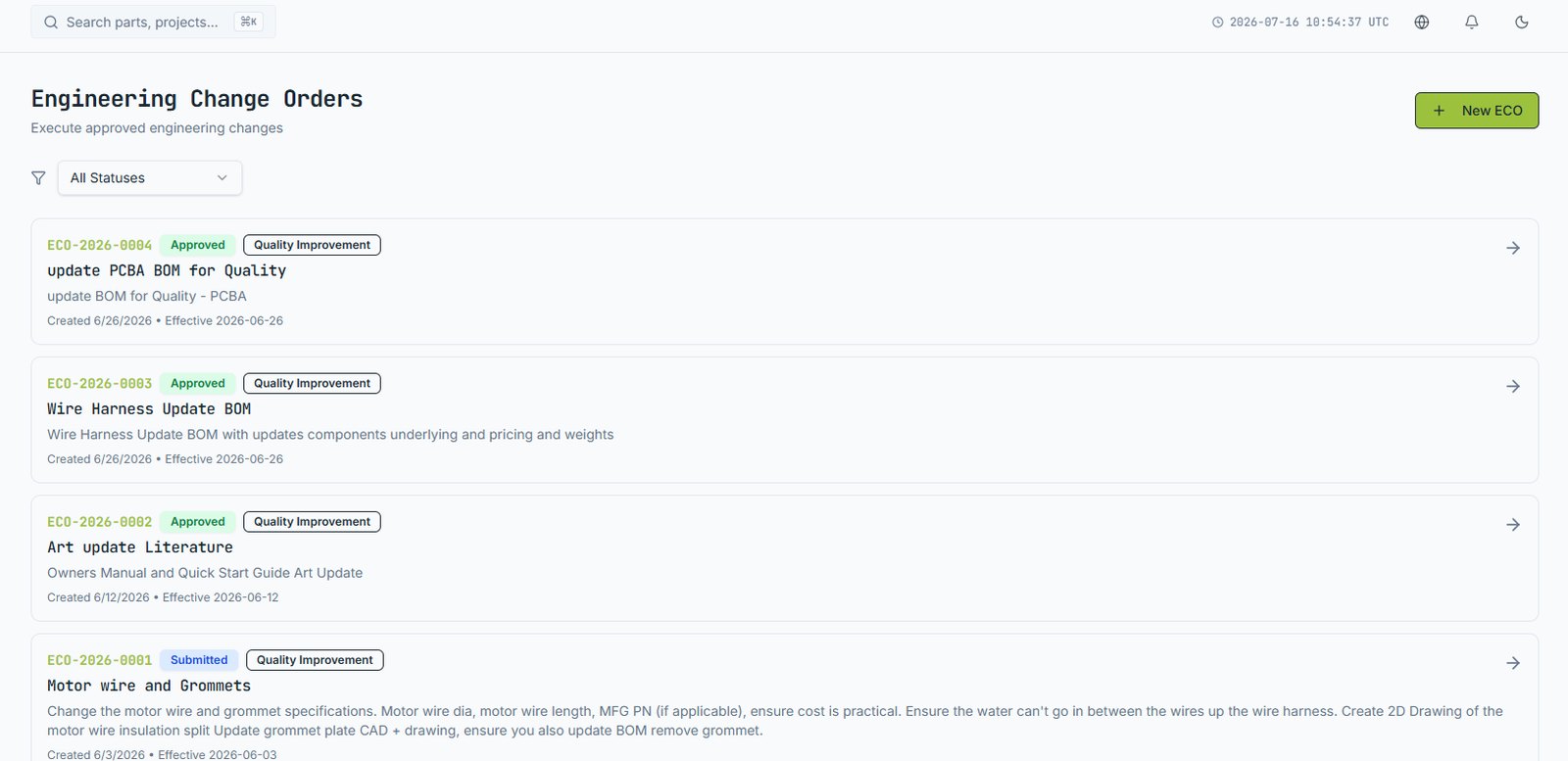
The ECO is where the change is actually specified and approved.
Creating it
- From an approved ECR, choose Create ECO — the linkage is kept automatically. Or create one directly.
- Add the affected parts. Each one is put into a new working revision.
- Set the effectivity: immediate, a date, or on exhaustion of existing stock.
- Classify it. Class I / Class II, or your own scheme — this often decides who has to approve.
Making the changes
Work through each affected part: update fields, check in new CAD, adjust the BOM. The ECO tracks which parts are done and which are outstanding, so nothing is forgotten.
Submitting for approval
When every part is ready, submit. The parts lock in review — no further edits until approval completes. Approvers are notified through their chosen channels.
Release
Once all approvals are in, the ECO releases: new revisions become current, previous ones are superseded, and an ECN goes to everyone affected.
If an approver rejects, the ECO returns to draft with their reason attached. Fix and resubmit — the history of both attempts is kept.
Email [email protected] and a person will pick it up. Include the part number and what you were doing — it saves a round trip.