Support / SolidWorks add-in
Installing the SolidWorks add-in
Requirements and installation, step by step.
SolidWorks add-in
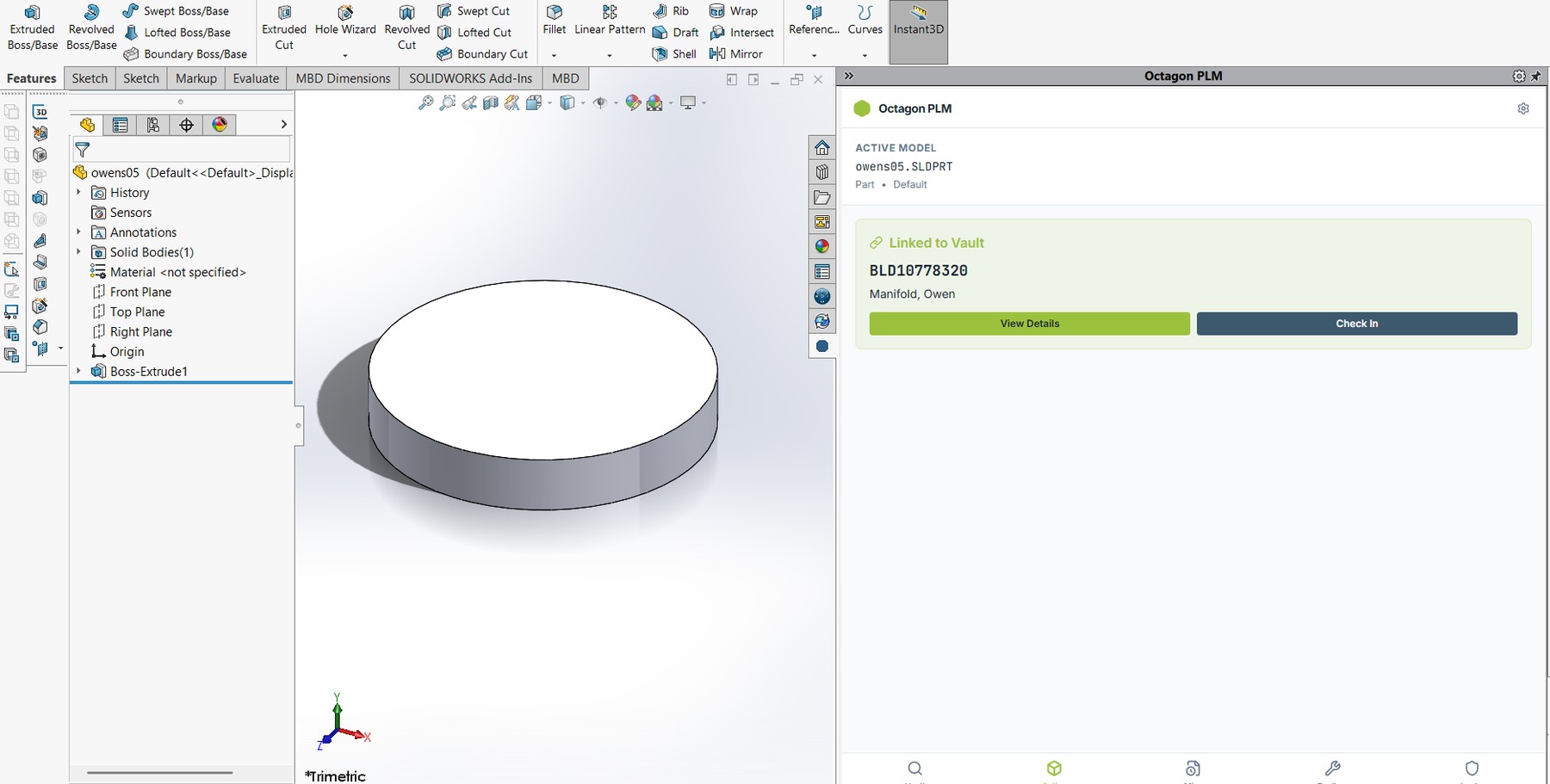
The add-in puts the vault inside SolidWorks as a task pane, so you check work in and out without leaving CAD.
Before you start
| Requirement | Detail |
|---|---|
| Windows | 10 or 11, 64-bit |
| SolidWorks | 2022 or newer |
| Seat | A CAD User seat — contributor and viewer seats can't use it |
| Network | Access to your vault address from the workstation |
Installing
- Sign in to the vault in a browser and open Plug-ins from the System group.
- Download the installer.
- Close SolidWorks completely.
- Run the installer and accept the prompt if Windows asks for permission.
- Start SolidWorks. The Octagon tab appears in the task pane on the right.
First sign-in
Open the Octagon tab and choose Sign in. A browser window opens for you to authenticate, then returns you to SolidWorks. Your session is remembered securely on that machine — you won't be asked every time.
Deploying to a team
The installer can be pushed silently by your IT team. Ask your administrator, or email [email protected] for the deployment notes.
Still stuck?
Email [email protected] and a person will pick it up. Include the part number and what you were doing — it saves a round trip.